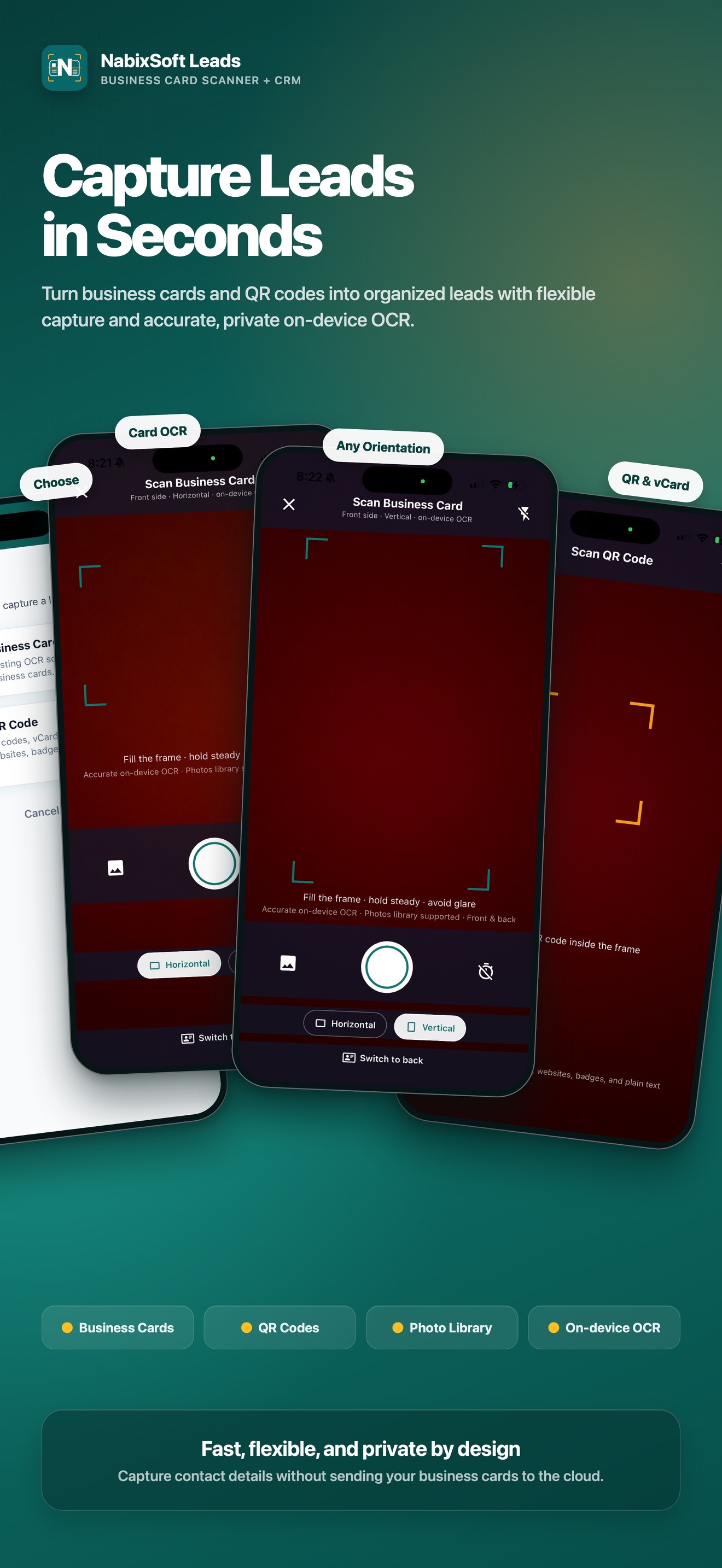
A card or QR becomes a contact.
Scan a paper card offline with Apple Vision OCR on iPhone or Google ML Kit on Android. Import a photo or scan a supported QR code, then review and save as a lead or contact.
 NABIXSOFT LEADS
Explore the app
NABIXSOFT LEADS
Explore the app
Turn a stack of business cards into thoughtful follow-ups. NabixSoft Leads keeps the details close, the next step clear, and your data right where it belongs.
Your prospects stay yours.
Offline-first. No cloud account. No tracking.
Good conversations deserve great follow-through.
One small tool. A much better next step.From the first handshake to the next calendar reminder, keep the details and the follow-up in one thoughtful place.
Scan a paper card offline with Apple Vision OCR on iPhone or Google ML Kit on Android. Import a photo or scan a supported QR code, then review and save as a lead or contact.
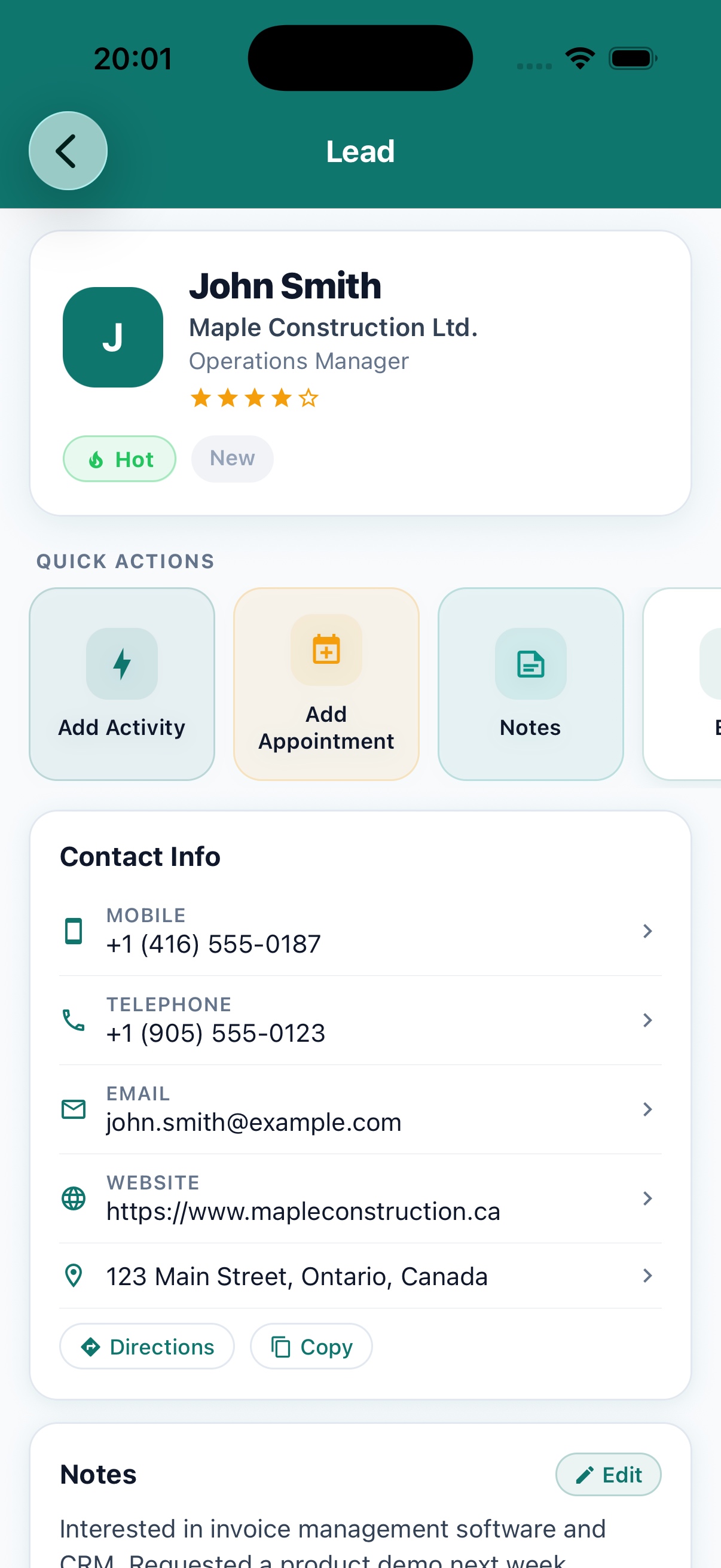
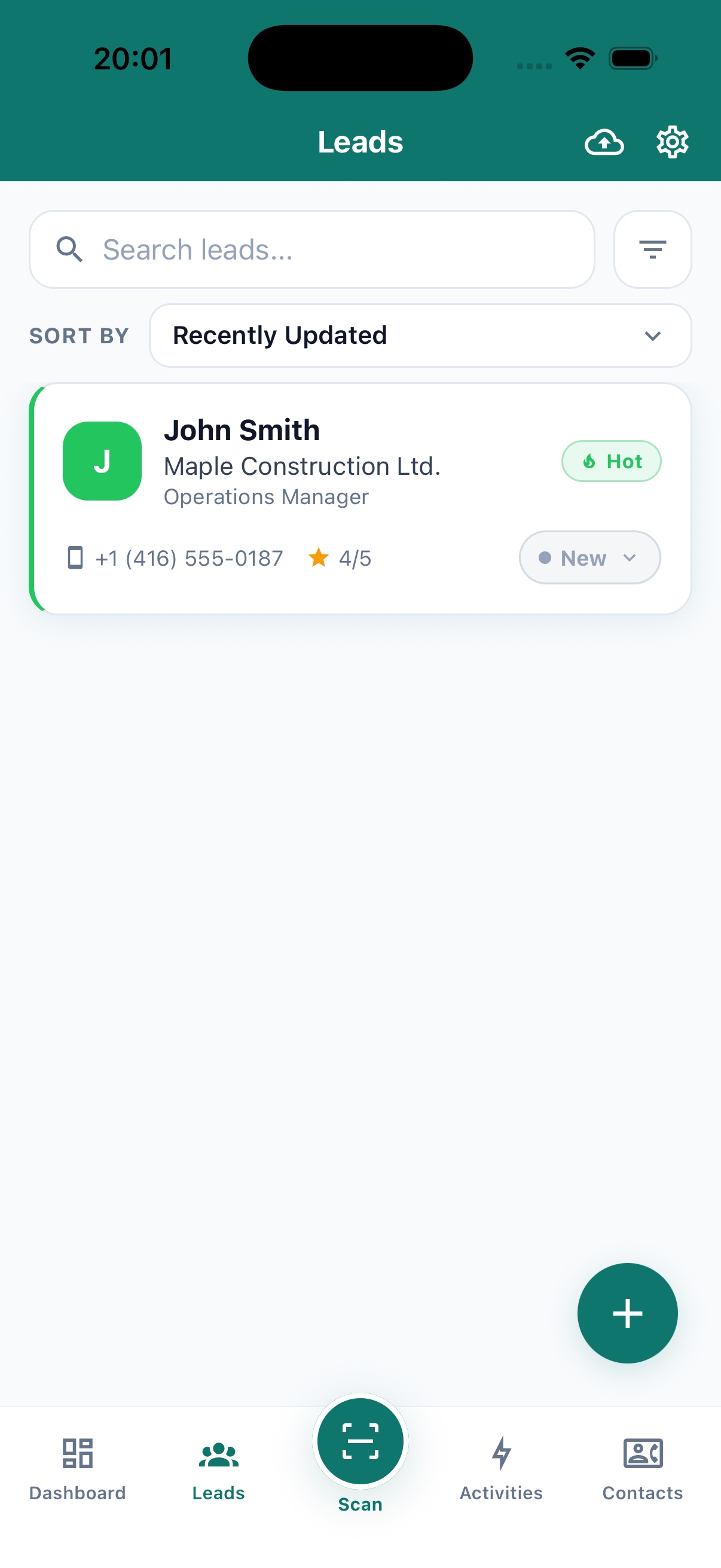
Add notes, tags, a lead status, and a rating. See the details you need when it is time to reconnect.
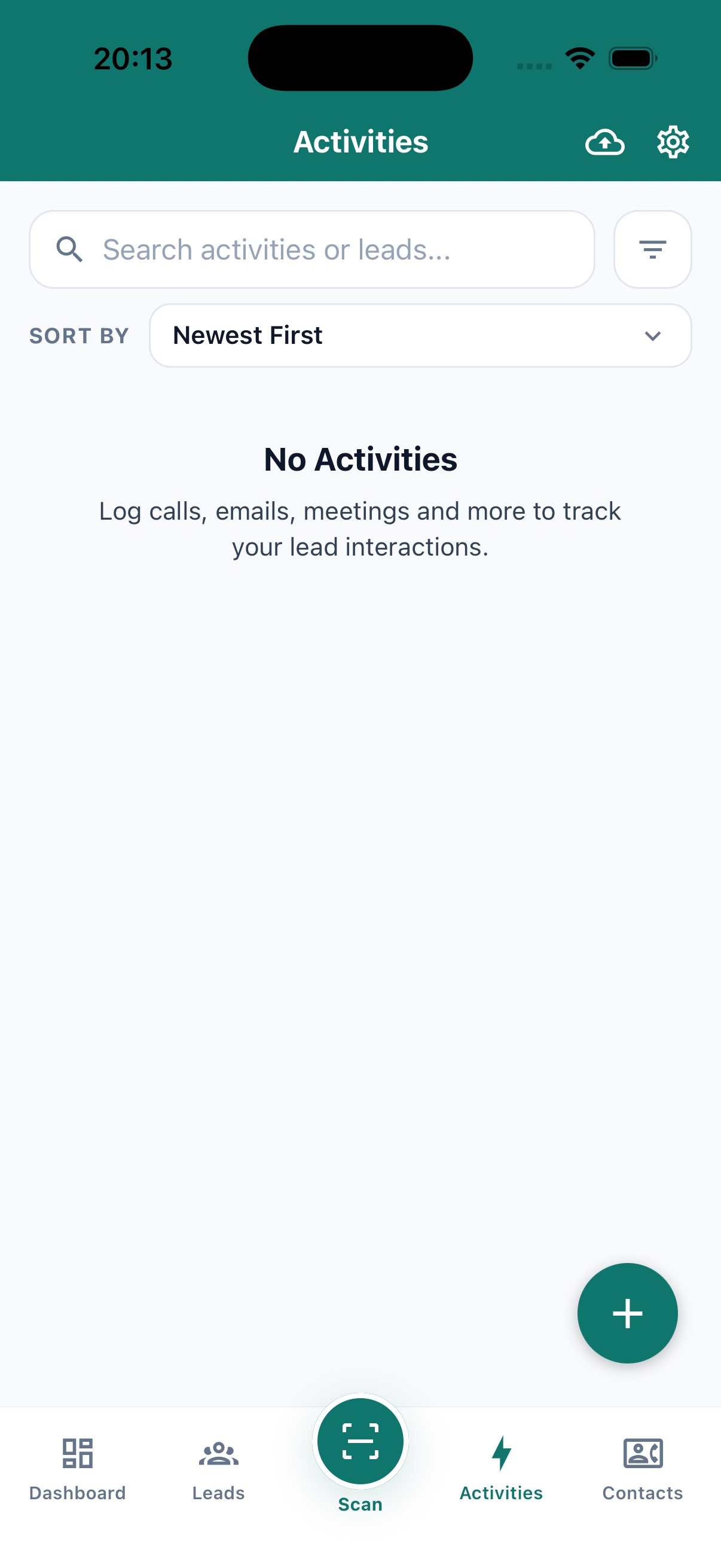
Log calls, emails, meetings, proposals, and follow-ups. Set a reminder so the conversation does not get lost in the shuffle.
Every scan is processed on your device. Your contact list remains yours to manage and export.
See the real capture screens, then review the result before it becomes a lead or contact.
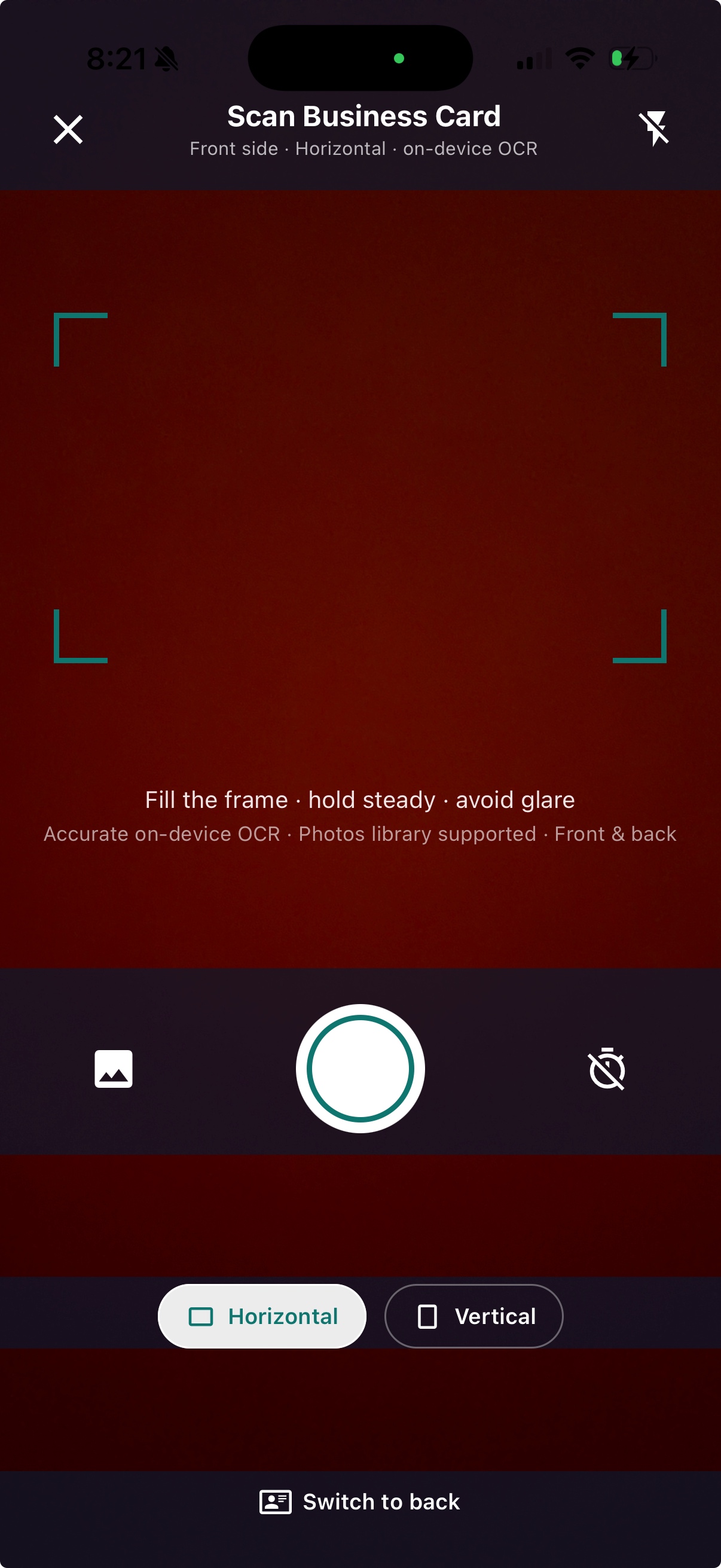
Open the centre Scan button or a Dashboard quick action. Point the camera at a business card, or import a photo you already took. On iPhone, Apple's Vision OCR reads the card on your device, even without internet, and fills an editable draft. Android uses on-device Google ML Kit text recognition.
Scan both sides and combine their details before review.
Edit fields or retake a scan; low-confidence results are flagged.
Read vCard, MeCard, LinkedIn, web, email, phone, and plain-text QR codes.
The moment after a meeting. The card you found in your bag. The follow-up you meant to send. NabixSoft Leads helps you pick the thread back up.
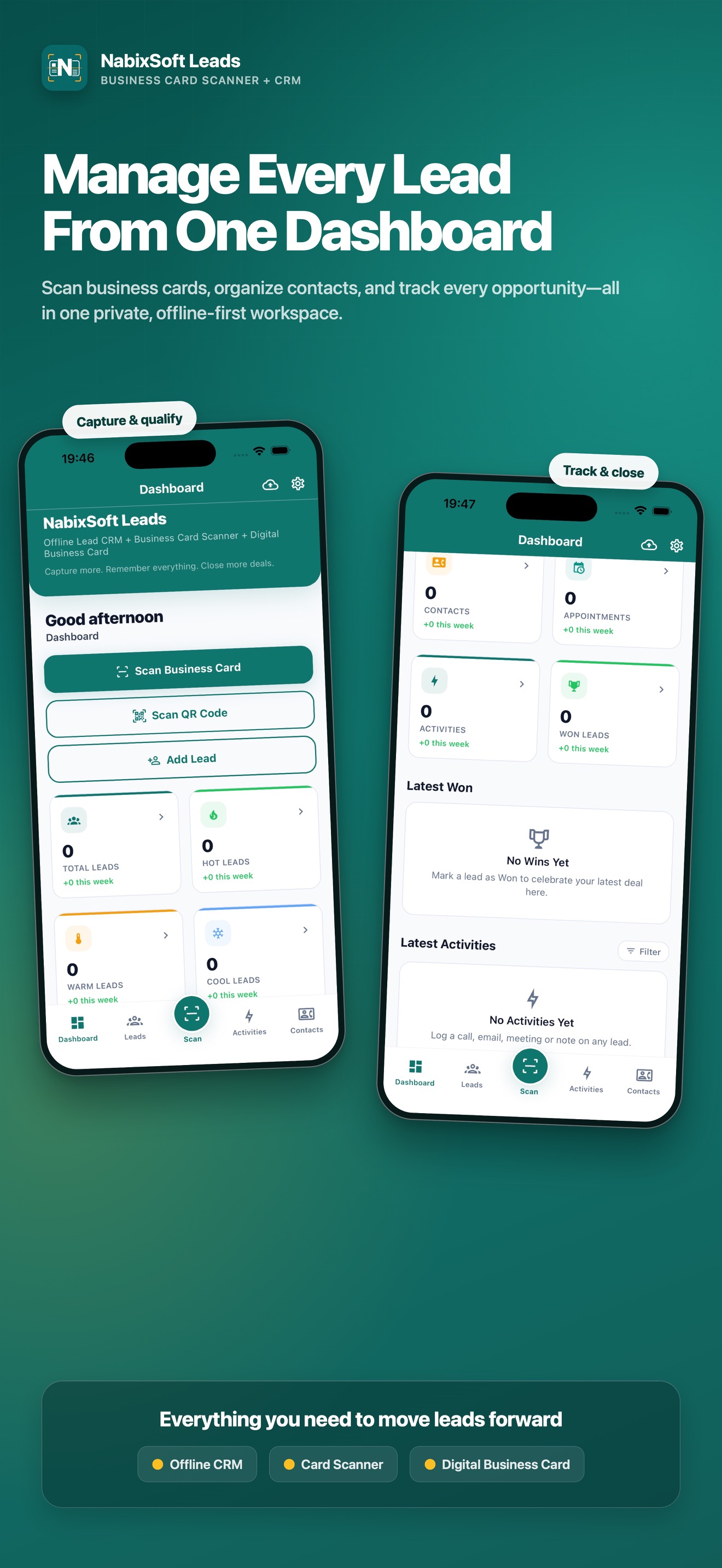
See prospects, activity, appointments, and outcomes on one compact dashboard.
Keep notes, tags, contact details, and a timeline together with every prospect.
Export contacts in several file formats or use optional iCloud backup and restore on iPhone.
More than a place to save a name: keep the context, progress, and practical next steps attached to every introduction.
Move a prospect through clear stages as the relationship develops.
Card image, notes, tags, linked contacts, status, and a reminder live with the prospect record.
Store name, company, job title, mobile and work phone, email, website, address, notes, tags, lead status, rating, follow-up reminder, and the original card image.
 TODAY'S ACTIVITYNEXT APPOINTMENT
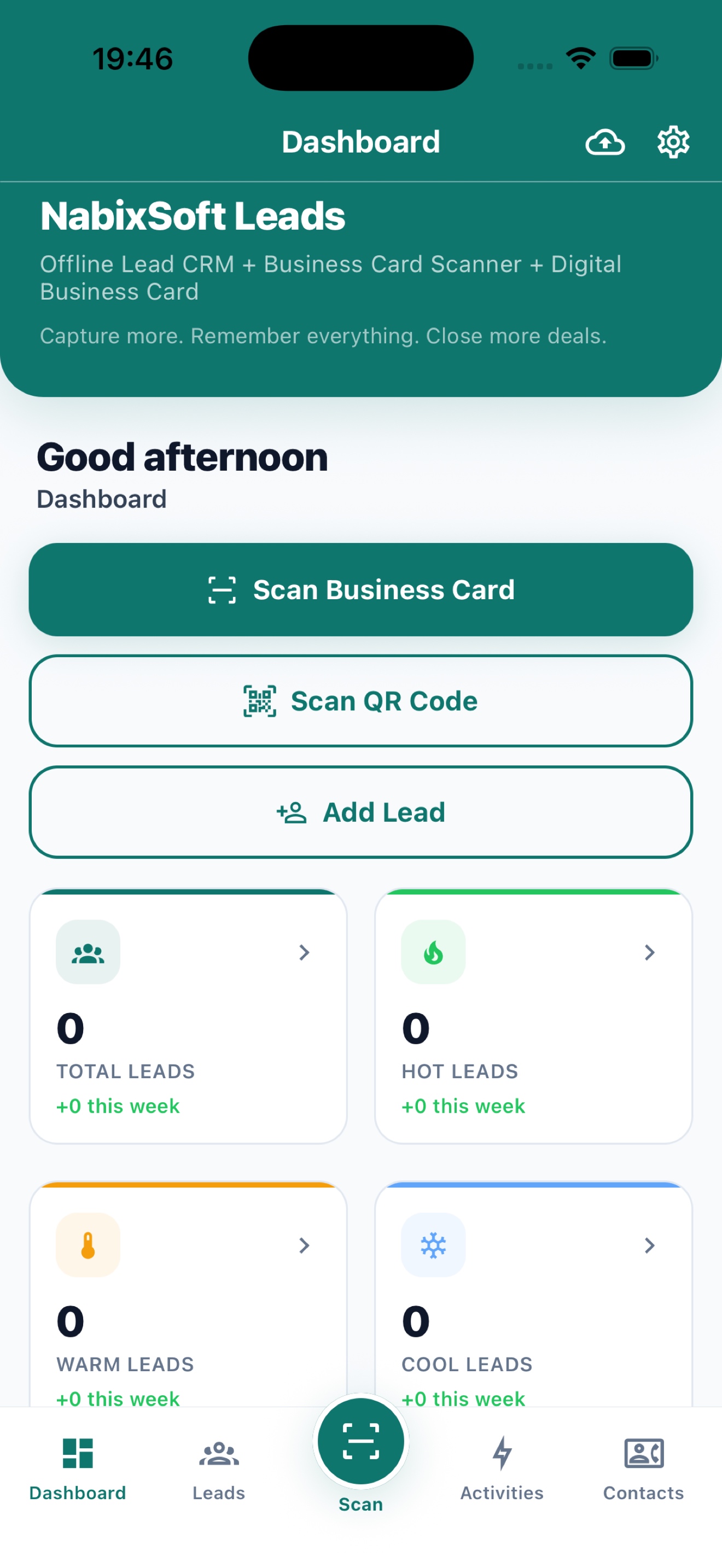
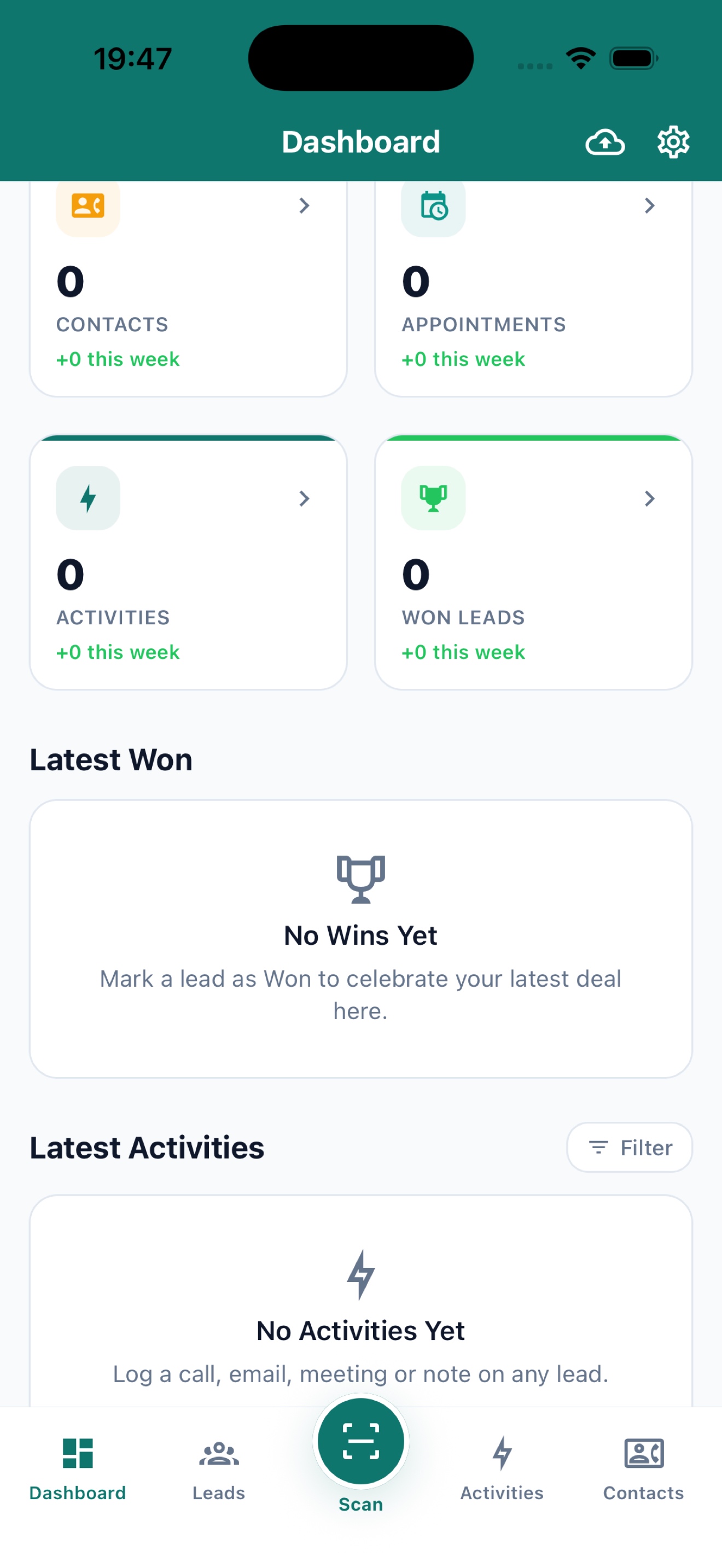
Check lead totals and levels, contacts, appointments, activities, and won deals. Quick actions let you scan a business card, scan a QR code, or add a lead from the dashboard.
Possible duplicate?
Checks email, mobile, or name + company before saving.
Search by name, company, title, email, or phone. Filter by pipeline status and Hot / Warm / Cool level, then sort by update date, creation date, name, or company. Tags stay with the lead record.
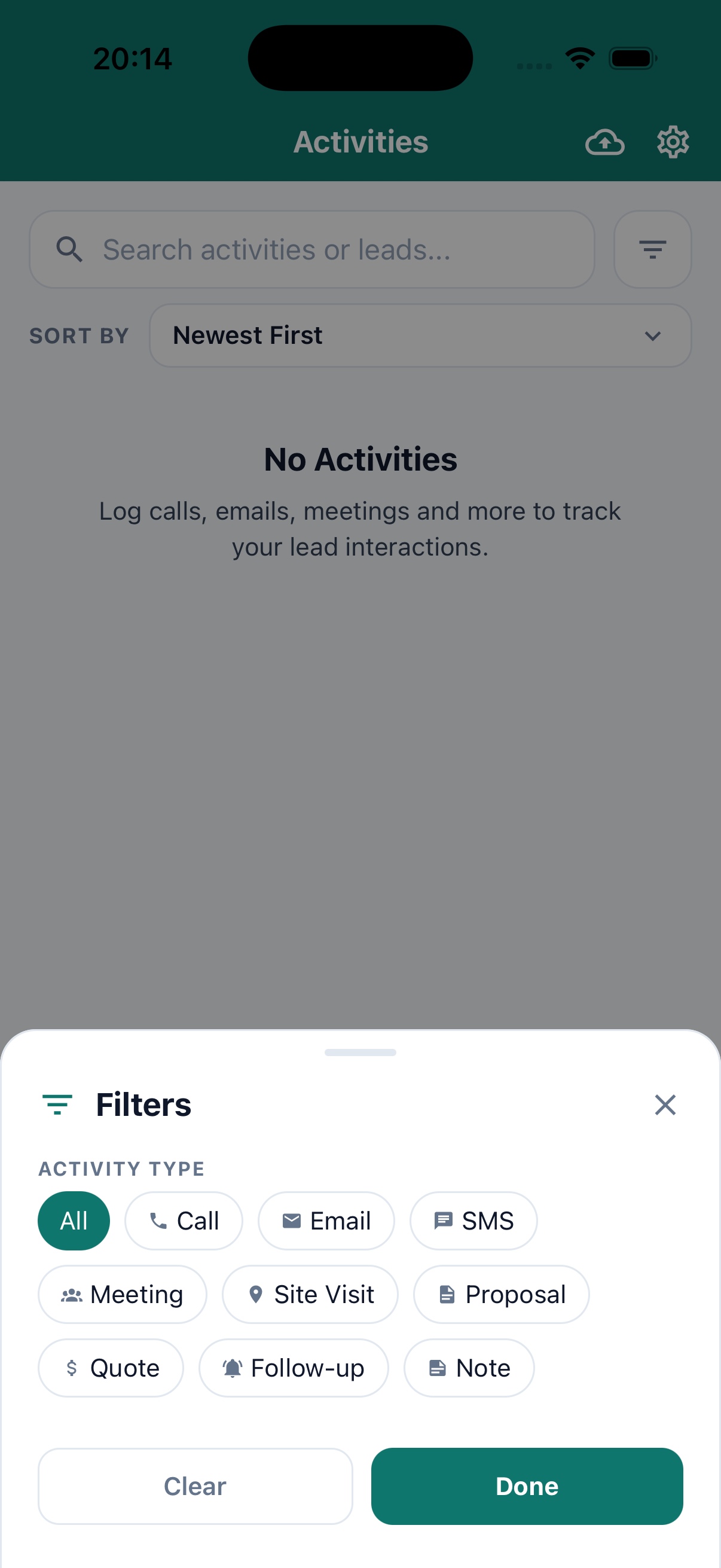
Log calls, emails, SMS, meetings, site visits, proposals, quotes, follow-ups, and notes against each prospect. Filter the activity list when you need a specific type.
Schedule an appointment with a title, date, time, duration, location, notes, and status. Local reminders can bring it back to mind; on iOS, appointments can also be added to Calendar with permission.
Use the address and contact details already saved on the prospect.
Open a saved address in Apple Maps or Google Maps, get directions, copy it, call or email from the lead, or save contact details to your device contacts. Maps use the address you saved; the app does not track live location.
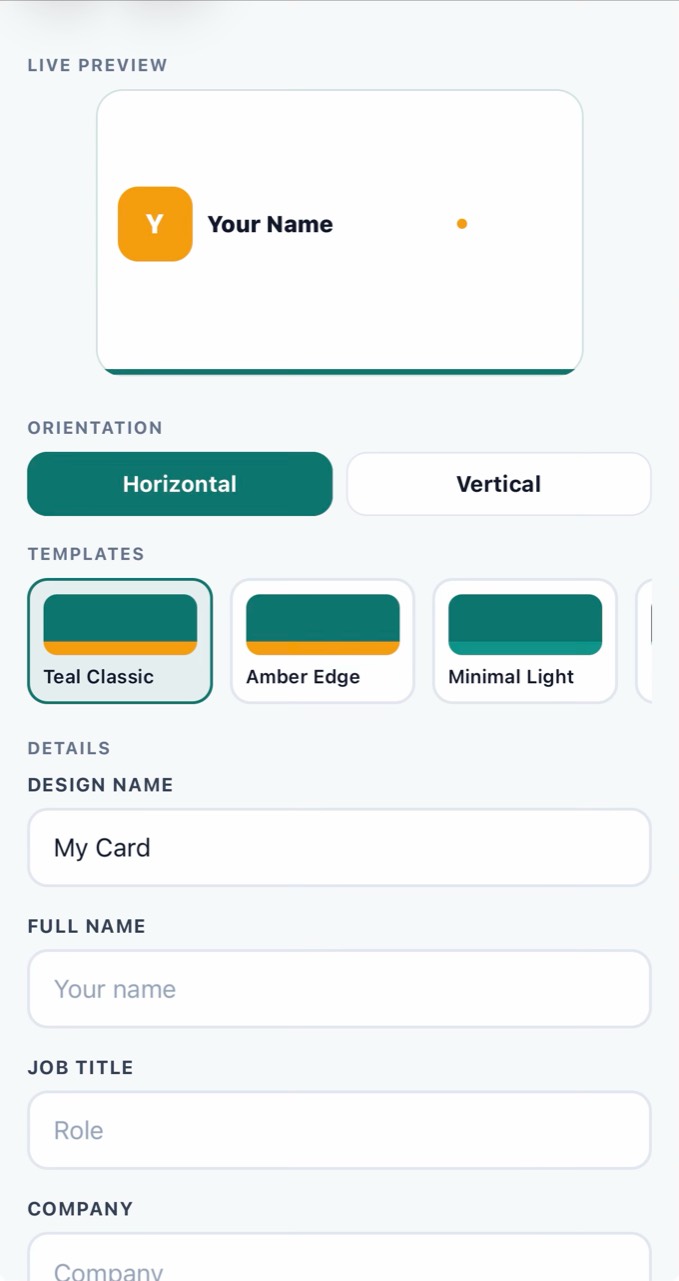
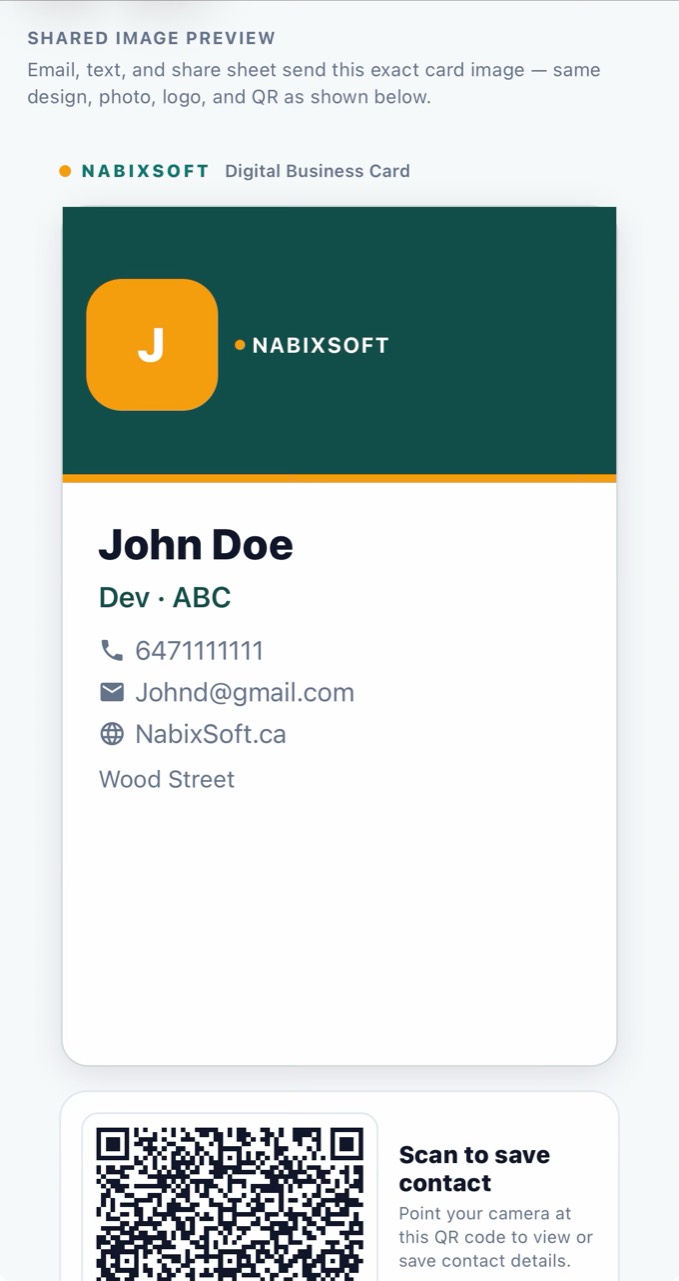
NabixSoft Leads also lets you make a digital business card for yourself. Add your contact details, optional photo, logo, and social links; choose a design and share a card image or contact file from the app.
Card designs
Horizontal and vertical layouts.
Scan to receive
Review a compatible card before saving it.
Contact file
Export a vCard for address books.
NABIXSOFT✳Try a quick live preview here. In the app, choose from 14 designs, add a photo and logo, and share with a scannable QR.
These details stay in this browser preview. The full card editor is in Settings → My Digital Cards in the app.
Your sample vCard downloads locally. The app can also share a card image, contact file, and card QR.
NABIXSOFT LEADS✳Illustrative browser preview. Open the app’s full editor to set a default card, rename, duplicate, or delete designs.
These screenshots show the in-app editor and the image preview used for sharing, including the contact QR.
NabixSoft Leads stores your prospect data locally on your device. There is no account to create, no cloud dependency, and no tracking. Back up or export when you choose.
See the data controlsThe everyday workflow stays on your device. When you choose, built-in export and backup options give you a way to take a copy with you.
Leads, contacts, activities, appointments, and scanned card images stay in the app's local database. Core lead work does not depend on a cloud account.
Export leads as CSV. Export contacts as Outlook CSV, Google Contacts CSV, vCard / VCF, or Excel. On iPhone, an optional iCloud backup stores CRM records, settings, and scanned card images.
Choose light, dark, or system appearance. Use tags and colored lead indicators to make the workspace easier to scan.
On iPhone, optional iCloud backup and restore cover CRM records and scanned card images. Digital business cards are stored separately and are not included in the CRM backup. Backups and exports are user-initiated.
A closer look at the screens and actions you use from the first scan to a saved backup.
Settings is in the top-right gear. The cloud icon beside it opens backup on iPhone.
REAL APP SCREEN · DASHBOARDSee lead totals, Hot / Warm / Cool levels, contacts, appointments, activities, won deals, Latest Won, and Latest Activities.
REAL APP SCREEN · CARD SCANNERTap the centre Scan button, choose Scan Business Card, and line up the card with the horizontal or vertical guide. You can also import a photo.
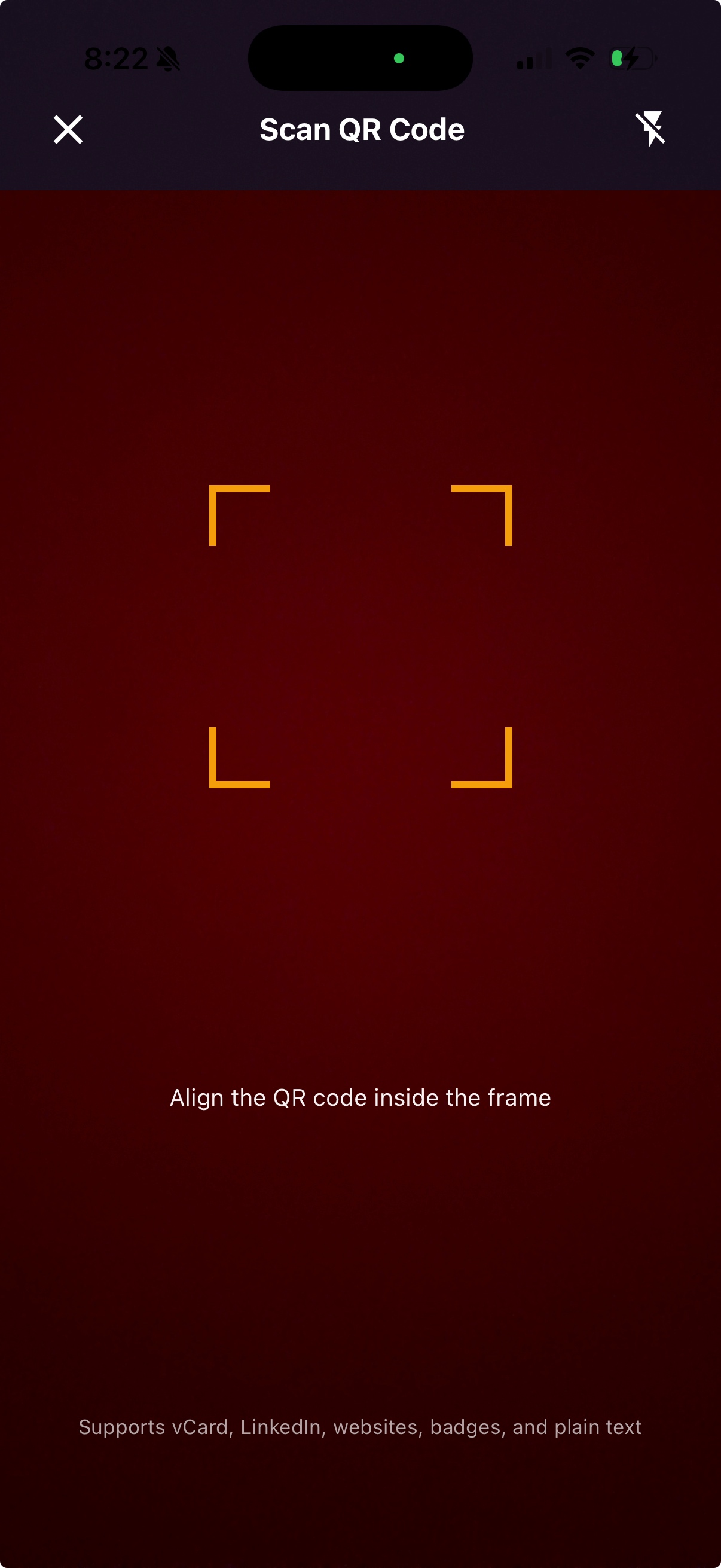 REAL APP SCREEN · QR SCANNER
The main QR scanner reads vCard, MeCard, LinkedIn, website, email, phone, and plain text codes.
REAL APP SCREEN · LEAD PROFILEAdd a lead with + on Leads, Add Lead on Dashboard, or from a scan. A name or company is required.
REAL APP SCREEN · ACTIVITIESActivities record Call, Email, SMS, Meeting, Site Visit, Proposal, Quote, Follow-up, or Note against a lead.
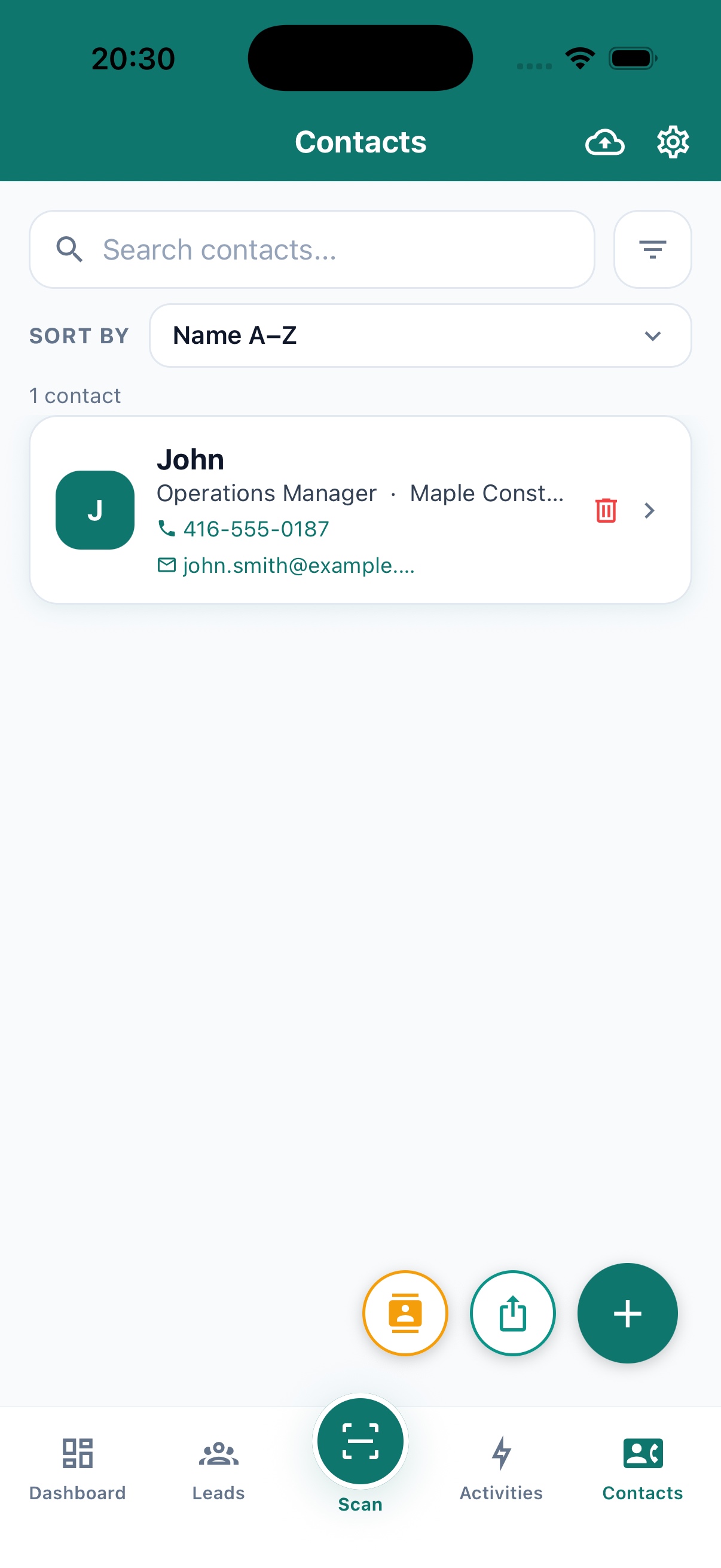 REAL APP SCREEN · CONTACTS
Contacts are people in the app, separate from your sales pipeline and your phone address book. A contact may be linked to one lead.
NABIXSOFT LEADSYour nameGo to Settings → My Digital Cards → New Card. Choose horizontal or vertical orientation and a template, then add a name or company, details, optional profile photo, logo, and social links.
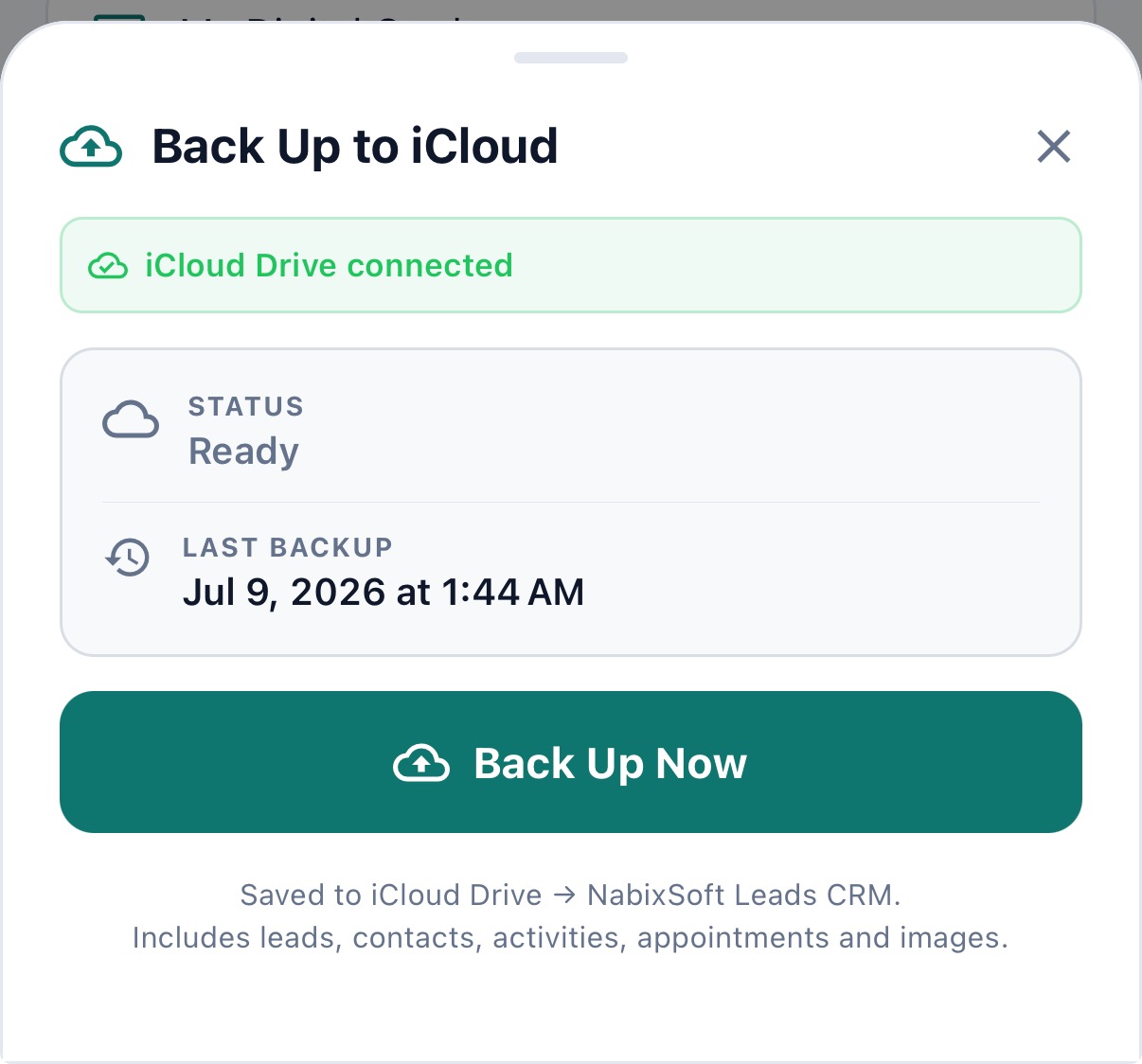 REAL APP SCREEN · IPHONE BACKUP
Core scanning, records, search, and digital cards work offline. Open Settings with the gear icon; choose Light, Dark, or System appearance.
Camera for scanning; Photos for card import and digital card images; Contacts for saving to the address book; notifications for reminders; iPhone Calendar and iCloud Drive for their optional features. If access is denied, enable it later in device Settings. Open Settings → Contact Support or write to support@nabixsoft.ca.
Quick answers about scanning, staying organized, and keeping your contacts in your hands.
The core app works offline: card scanning and QR reading, search and filters, editing records, and digital cards. Internet or another device app is only needed for actions that leave the app, such as opening a map, sending email, sharing a file, or using iCloud backup on iPhone.
Capture a card with the camera or import a photo. On iPhone, Apple Vision OCR reads the text on-device; on Android, Google ML Kit does the same. Card recognition works offline and fills an editable draft. Review each field before saving it as a lead or contact. A front-and-back scan can be kept with the profile.
The main Scan QR Code flow can read vCard, MeCard, LinkedIn, website, email, phone, and plain text codes. It can save the result as an in-app lead or contact, or open a link. The separate Scan Card QR option under My Digital Cards expects a digital business card's vCard QR.
Leads are potential customers you track through a sales pipeline. Contacts are people stored in the app, such as a colleague linked to a lead. In-app contacts are separate from your phone address book until you choose to save or export them.
Search leads by name, company, title, email, or phone number. Filter by pipeline status and Hot, Warm, or Cool lead level. Sort by recently updated, newest, oldest, name, or company. Tags stay with a lead and appear on its detail screen; there is no separate tag filter on the Leads list.
When saving a new lead, the app looks for the same email, the same mobile number, or the same name and company. You can review possible matches, save as a new lead anyway, or cancel.
Log a call, email, SMS, meeting, site visit, proposal, quote, follow-up, or note. You can also attach an appointment with a title, date, time, duration, location, notes, and status. Scheduled appointments can trigger a local notification; iPhone can optionally add them to Calendar when access is allowed.
Create horizontal or vertical designs, add your name or company, role, contact information, optional photo and logo, and social links. Share by email (card image and vCard), text (card image), or the device share sheet (image and vCard); export a vCard file by itself when you prefer.
Yes. Export in-app contacts as Outlook Contacts CSV, Google Contacts CSV, vCard / VCF, or Excel (.xlsx). These are files you share; they do not create an automatic or live sync with those services.
A JSON backup can include leads, contacts, activities, appointments, tags, settings, and scanned business card images. On iPhone, optional iCloud backup and restore are available for this CRM data. Restoring replaces the current CRM data; digital business cards are stored separately and are not part of that backup.
No. The app does not track live location, analytics, or usage. Map and Directions actions open your maps app with the address text you saved.
NabixSoft Leads has no subscription and is built for iOS and Android. Choose light, dark, or system appearance. iCloud backup and iOS Calendar access are iPhone-specific options.
Explore every screen, from the first dashboard glance to the small details that help you keep a promise.
THE COMPLETE NABIXSOFT LEADS EXPERIENCE
Keep the people you meet close, and the next step a little clearer.
Back to the beginning